.png?width=44&height=44&name=joomag%20favicon-blue%20(2).png)
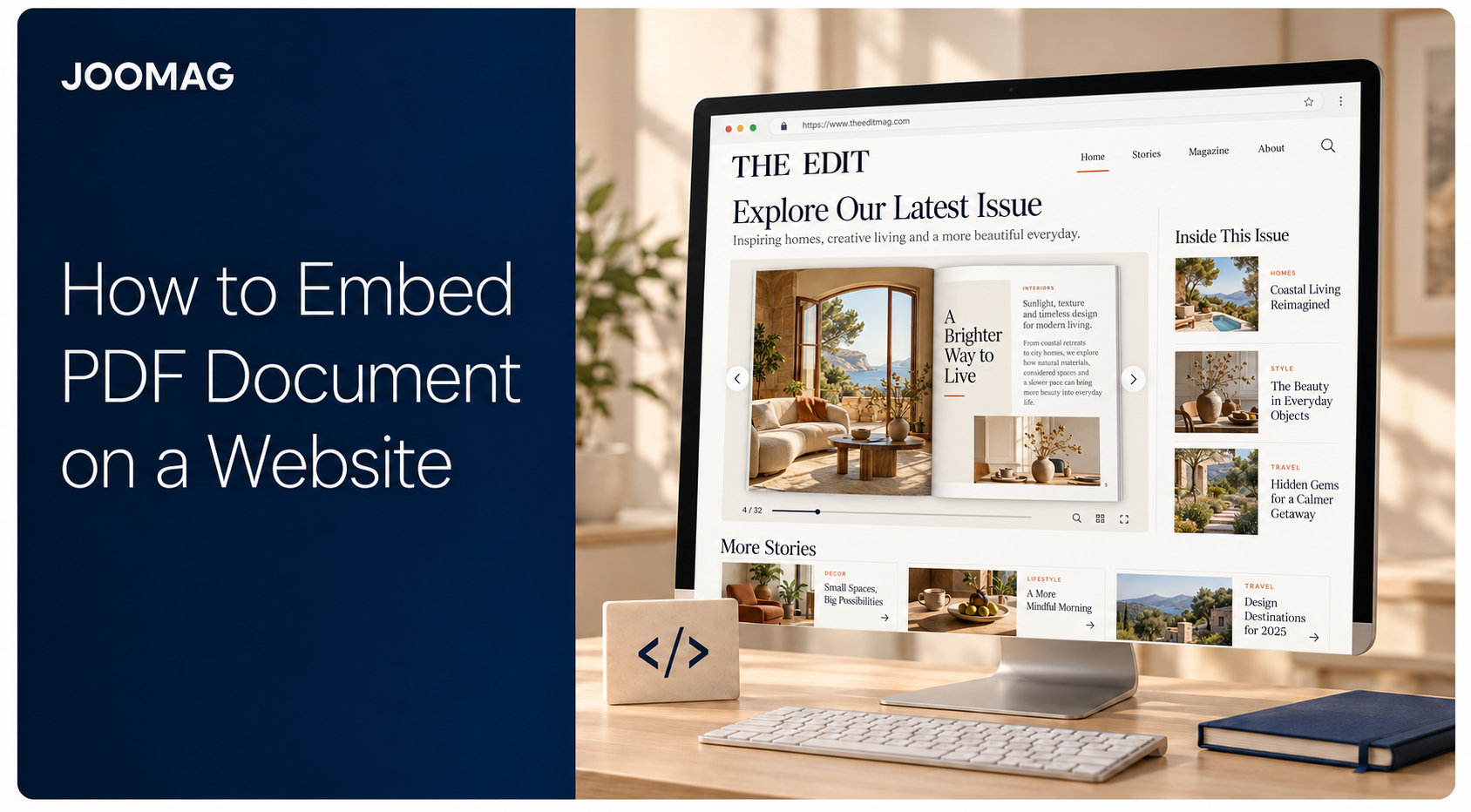
Your report is approved, the landing page is nearly ready, and someone asks whether readers can view the PDF without leaving the website. To embed a PDF document, upload it to a web-accessible location, then place an iframe pointing to its address in your page's HTML or supported embed block. If you're using a publishing platform, paste its generated viewer code instead. In either case, keep a visible link beneath the viewer so readers aren't stranded when an embed fails.
Pick the Right Way to Embed a PDF
Three ways to embed a PDF document
| Method | Best for | What you paste | Reader controls | Main limit |
|---|---|---|---|---|
| Browser iframe | A public PDF already hosted on your site | iframe aimed at the PDF URL | The browser's own PDF viewer | Controls differ by browser and the frame has no inner fallback |
| CMS-supported embed | Editors publishing through a content system | Generated markup in an HTML or embed block | Whatever that block and viewer expose | The block must keep the code, and the editor preview can differ from the live page |
| Interactive publication viewer | Magazines, catalogs, brochures, and proposals | Platform-generated viewer code | Page navigation, branding, and optional access settings | Still needs a direct link and does not auto-rank or identify every reader |
Choose a browser iframe when you already host a public PDF and need straightforward inline reading. Choose a CMS-supported embed when editors need to publish through the website's existing content workflow. Choose an interactive publication viewer when the document should feel like a publication people browse, rather than a file displayed inside a rectangle.
These aren't completely separate technologies. A CMS block can contain an iframe, and a publication platform may supply an iframe as its generated code. The important distinction is who hosts the document, who provides the viewing interface, and who maintains the integration.
Match the method to the publishing job
Say your marketing team has a research report on its website already. If the surrounding landing page provides the summary, campaign context, and next action, a browser iframe may be enough. You're adding a reading window, not rebuilding the publication.
A CMS-supported embed makes sense when your web team has established an approved block for documents. Editors can use that block without editing the page template. However, a block labeled for embeds might accept only supported services, not arbitrary HTML, so confirm what it saves.
For a product catalog or association magazine, the reading interface matters more. Page navigation, presentation, and publication-level settings become part of the decision. Consider digital publication delivery when the same publication needs to reach readers through a website, content hub, and shared publication link.
Pick by ownership: Use the simplest method your team can publish, maintain, and test without depending on an undocumented workaround.
Keep the shared limits in view
None of these methods, by embedding alone, turns fixed PDF text into phone-sized paragraphs, improves search rankings automatically, or identifies every visitor. Those outcomes require separate work on the content, page, access settings, and measurement.
Make the decision before designing the surrounding page. Ask whether the document is public, whether the website accepts the necessary code, and whether readers need a basic file window or a publication interface. Keep the answer concrete: an annual report for public download has a different job from a confidential sales proposal.
Whatever you select, reserve space beneath the viewer for an alternative reading path. Treat that link as part of the page design, not an emergency addition hidden in the footer.
Embed a PDF with a Browser Iframe
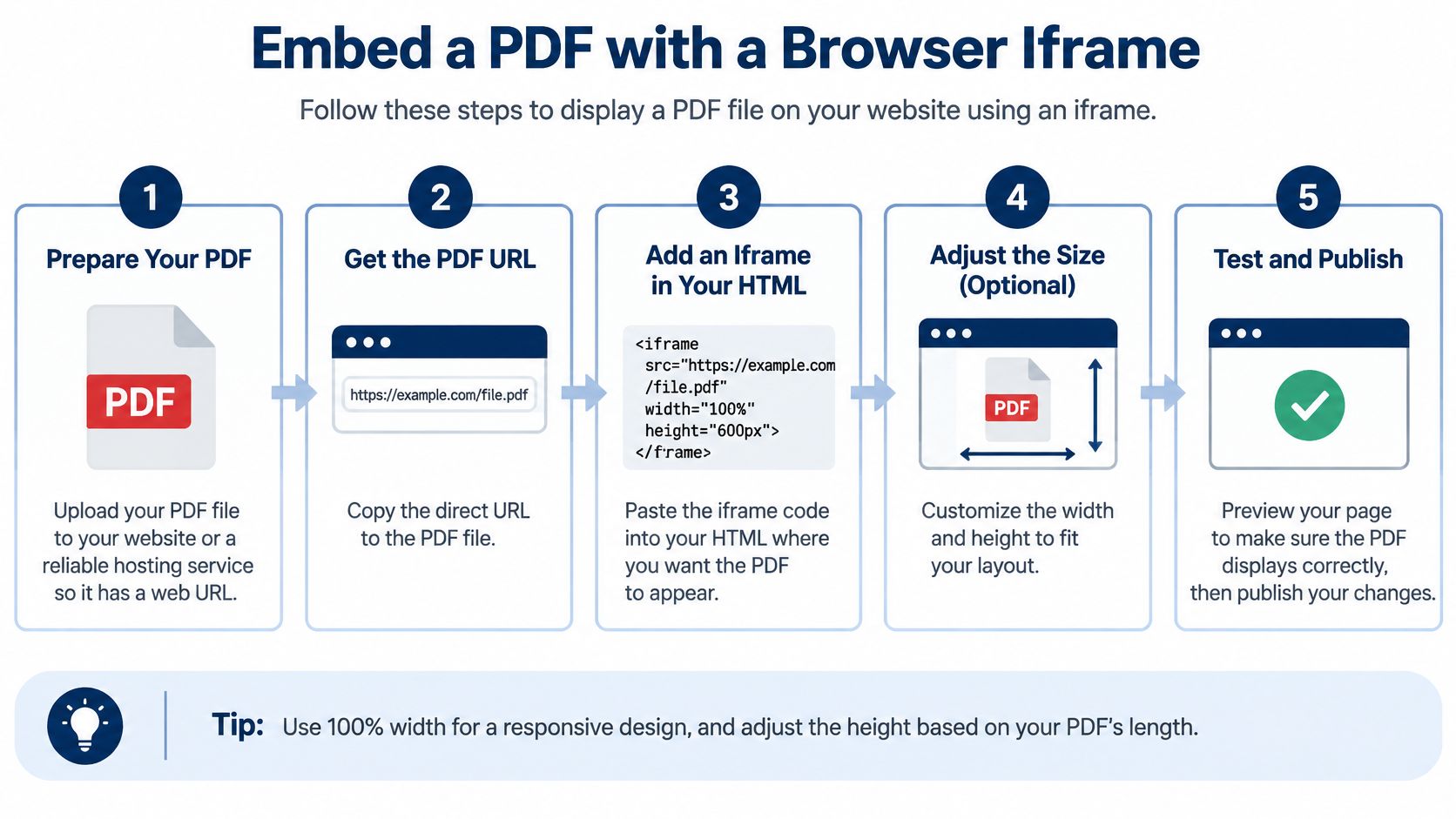
<iframe src="https://example.com/files/report.pdf" title="Annual report" width="100%" height="600" loading="lazy"></iframe>
This example points directly to a hosted PDF. Replace the sample address with your document's actual web address, and paste the markup into the page's HTML or a block that accepts HTML.
The MDN iframe reference documents default dimensions of 300 by 150 CSS pixels, which is why leaving out sizing can produce a tiny document window. It also explains the iframe attributes used here, including its title and deferred loading behavior.
Build the embed in a deliberate sequence
- Host the PDF over HTTPS and copy its stable address. Upload the approved file to your website's media storage or a permitted file host. The
srcvalue comes from the PDF's own web address, not a folder on your laptop, an editor preview, or a file-management screen. Open that address directly before using it. - Paste the iframe into the page HTML. Use the actual document URL in
src. A visitor must have permission to fetch that URL, and your website's security policy must permit the embedded address. A file that opens for a signed-in editor may still fail for a public visitor. - Set the width and an explicit height. The example's
width="100%"lets the frame fill its containing column, while itsheight="600"is a starting configuration rather than a universal recommendation. On a phone, try a taller frame if the controls leave too little reading space, but keep enough of the surrounding page visible that readers can move past it. - Name the document in the title. Replace
Annual reportwith a useful description of your own document. The iframe title labels the frame for assistive technology; it doesn't replace the page heading or repair the PDF's internal structure. - Place the fallback outside the iframe. Add a normal link immediately beneath it, using the same document address. An iframe doesn't provide child fallback markup that appears when PDF rendering fails, so putting a link between its opening and closing tags won't solve the problem.
- Defer loading only when appropriate. Keep
loading="lazy"for a document below the initial viewport. If the report viewer is the main content visitors arrive to read, remove that attribute rather than deliberately deferring the central experience. - Test the published page. Open it in Chrome, Firefox, Safari, and a phone browser. Check the document itself, the external link, and the page around it, not merely whether a PDF-shaped area appears.
A simple external fallback can use this markup:
<a href="https://example.com/files/report.pdf">Open or download the annual report PDF</a>
Use a descriptive label rather than a vague instruction to click. If opening in a new tab is important to your page design, make that behavior clear to readers.
Size the reading window, not just the rectangle
Full-width embedding makes the container responsive. It doesn't guarantee a comfortable document view.
Check your page's actual content column. A sidebar, generous page padding, or a narrow campaign template can squeeze the viewer even when its width fills the available space. Fix the containing layout before increasing the frame height.
On a phone, look for competing scroll areas. Readers should be able to move through the document and then continue down the webpage without feeling trapped. Test both screen orientations, and make sure the fallback remains easy to reach.
A successful embed lets readers finish a task. A rectangle that loads but is awkward to navigate isn't a finished implementation.
Understand what the browser controls
The browser supplies the PDF renderer, so don't promise identical toolbars across Chrome, Firefox, and Safari. Zoom, search, page navigation, download behavior, and mobile presentation can differ. Your iframe attributes don't give you complete control over that interface.
The MDN embedding reference provides context for native embedded content. For this workflow, use an iframe as the practical default; consider <object> when you specifically need fallback HTML inside the embedding element.
Don't add a sandbox attribute casually. It can prevent the built-in PDF viewer from working, rather than making an otherwise working embed safer.
Finish with failure testing, not just a successful desktop visit:
- Unavailable file: Confirm that a missing or blocked document still leaves a usable external link.
- Slow connection: Watch whether readers can understand the page while the viewer loads.
- Keyboard navigation: Move into the frame, operate available controls, and move back out.
- Screen reader: Check the frame title and fallback link in the page's reading sequence.
Email clients and many restricted content-hub templates strip iframe code. For those channels, use a PDF or publication link instead of assuming the website embed will survive copying.
Add a Joomag Viewer Embed
For an interactive publication, use the platform's generated code rather than hand-writing an iframe aimed at the original PDF. The source is now a published viewing experience, not a raw file address.
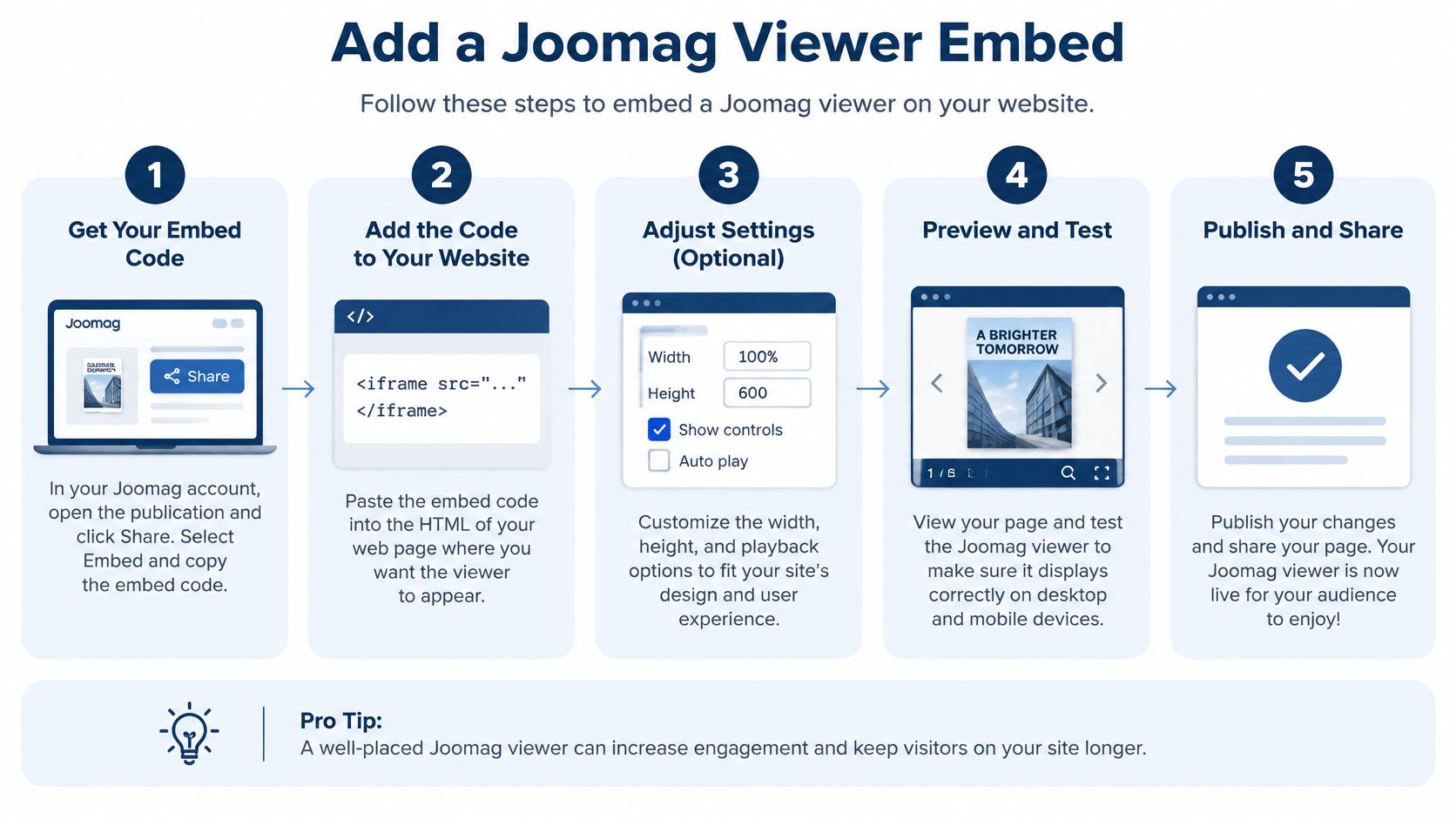
The Joomag publication-viewer help page documents the route through My Publications, Embed, Viewer, optional Customize, and generate code. Follow those controls rather than guessing at sharing-menu names.
Generate code from the published publication
- Publish the document. Make sure you're working with the live publication you intend readers to open, not an unpublished source file.
- Open the relevant collection in My Publications. Choose the publication, click Embed, and select Viewer.
- Use Customize if needed. Adjust the viewer before generating the code when the publication requires a different presentation.
- Click generate code. Copy the snippet supplied by the Embedding wizard.
- Insert the supplied code into the website. Use a website section or CMS block that accepts HTML or embeds, then save and publish the page.
The distinction matters when a colleague hands you the original PDF address. That address belongs in a raw-file embed, not in place of the platform-generated viewer code. Keep the generated snippet intact unless someone responsible for the website understands the consequences of changing it.
For publication presentation, review the branded viewer options before finalizing the embed. Settle the intended appearance first, then inspect it in the actual page column.
What Joomag Adds Beyond a Basic PDF Embed
Joomag lets you preserve your publication’s original design while adding videos, product links, and forms that help readers explore and take action. Customize the viewer’s branding so the embedded publication feels consistent with your website.
For mobile readers, AI Article Extraction can turn PDF content into responsive articles, offering an alternative to zooming through fixed-layout pages. Article View also supports screen readers, keyboard navigation, and adjustable text sizes.
Reader analytics provide insight into publication engagement, including reading time, page activity, and link clicks. Your team can use these signals to understand which content attracts attention and where the reading experience needs improvement.
Check the saved block and the live page
WordPress, Drupal, and other content systems use different block names and permissions. The reliable question isn't whether you found a menu with a familiar label. It's whether the block retains the generated code after saving and renders it on the public page.
Preview the published URL as a reader would. Check that the viewer fits the column, its controls remain reachable, and the publication's public or restricted access behavior matches your intention. Test a signed-out session rather than relying only on your editor account.
Publishing check: Approve the live reading experience, not just the CMS preview.
The documented alternatives include an HTML-download route and an ordinary publication link. Treat these as separate delivery options, not interchangeable snippets: an HTML download needs an appropriate hosting workflow, while a publication link can be shared directly.
When a locked template or email cannot hold the viewer, use the ordinary publication link. You should finish with both the generated website code and a usable destination for readers who need to open the publication separately.
Limits of an Embedded PDF
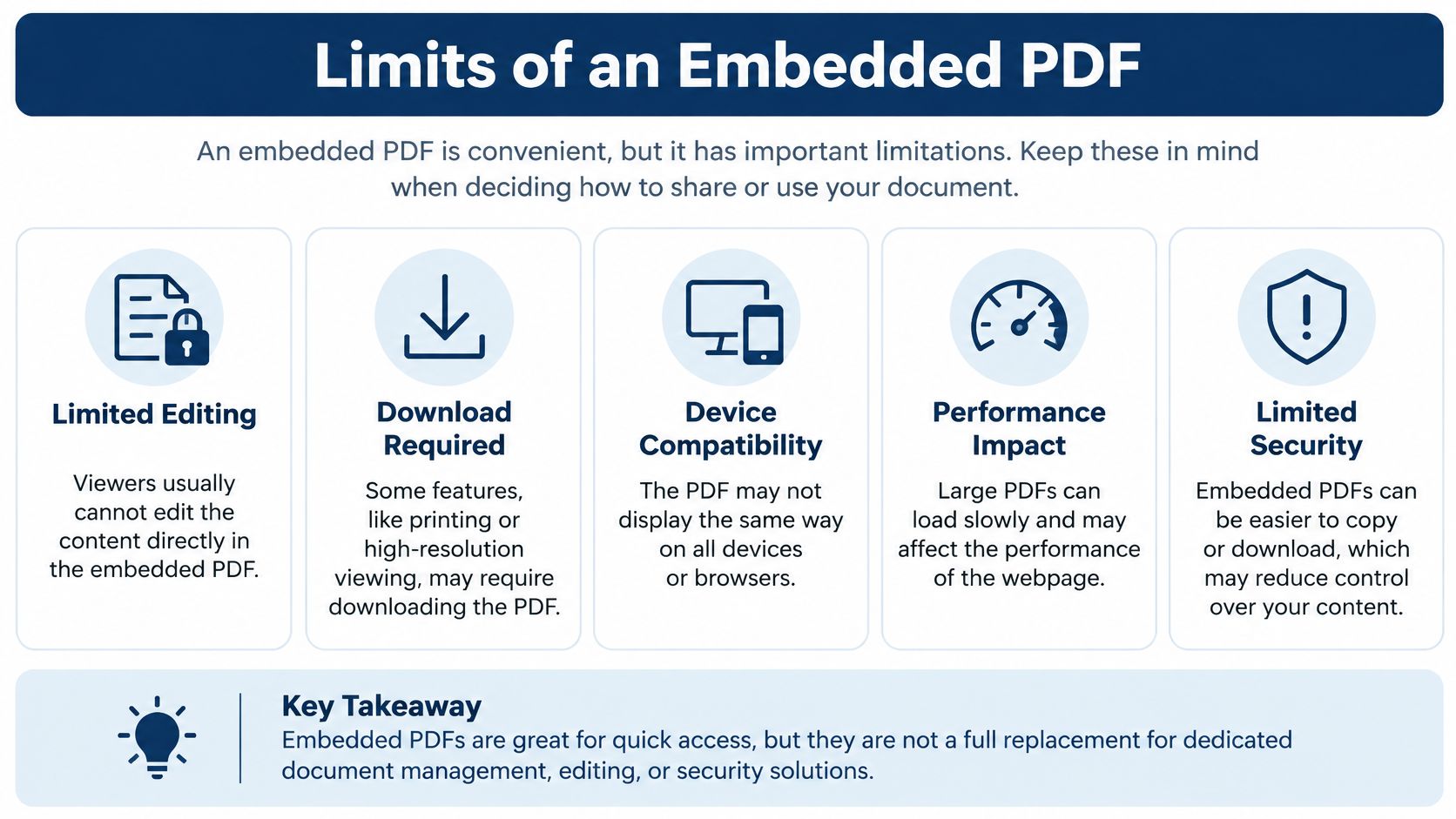
Embedding doesn't make PDF text responsive, improve rankings automatically, or identify every visitor. It changes where readers encounter the document. It doesn't, by itself, change the document's structure or establish who is reading it.
A fixed-layout page still has fixed-layout text. Making its frame wider or taller can improve the viewport, but small type may still require zooming on a phone. A mobile reading experience needs deliberate content and presentation choices beyond inserting embed code.
Search visibility also needs its own work. Give the webpage a useful summary, descriptive headings, a clear document link, and a sensible filename. Don't publish an otherwise empty landing page and expect the embedded file to do the page's entire job.
Separate reading access from reader identity
A plain iframe doesn't create an identified reader record. Even a measured publication viewer can observe only supported activity within that experience, not everyone who received, forwarded, or opened a separately downloaded file. Don't label every anonymous view as a known prospect.
Accessibility requires a separate check, too. The W3C PDF accessibility techniques explain the importance of document structure, including tagged headings, logical reading order, links, and tables. Displaying a PDF in a frame doesn't add those features.
Use a dual-path reading experience:
- Inside the page: Provide a tested viewer with keyboard-accessible controls and a descriptive frame title.
- Outside the frame: Offer a clearly labeled direct PDF link or accessible HTML/text alternative.
- Within the source: Preserve meaningful tags, reading order, link text, and document navigation.
Viewer and assistive-technology combinations can behave differently. An accessible source PDF is necessary, but it isn't proof that every embedded reading journey will work.
Treat confidentiality as an access decision
An iframe is not a lock. Adobe's security documentation distinguishes viewer isolation from the surrounding website and document-access configuration. Keeping the viewer separate from the page doesn't establish authorization for the file.
For proposals, investor materials, and HR documents, validate permission at the document or viewer endpoint. Prefer authenticated access or controlled, expiring URLs where the delivery system supports them. Configure referrer behavior deliberately, and don't confuse hiding a download button with preventing access to the source.
Choose the delivery path before sharing: a public embed for public material, a gated viewer or authenticated portal for restricted content, or an authorized download when inline reading adds little value. A fallback for confidential content must preserve the same access boundary, not bypass it.
Fix a Broken Embed and Publish
Start with the failing part of the reader journey. If the document won't open independently, editing the page layout won't repair it. If the document opens but the published page loses the viewer, investigate the website block and its security rules.
Embed problems and the first fix
| What you see | Usual cause | First fix |
|---|---|---|
| Blank frame | PDF URL is wrong, private, or blocked | Open the file URL directly over HTTPS |
| Different or missing controls | Each browser supplies its own viewer | Keep a separate open or download link |
| Thin strip on a phone | Height left at the default or fixed to desktop pixels | Use full column width and an explicit taller height |
| Viewer never loads after a new attribute | sandbox stops the built-in PDF viewer |
Remove sandbox |
| Fine in the editor, gone when published | CMS block stripped the embed code | Use a block that stores HTML and retest the live URL |
| Confidential file still opens for anyone with the link | The page embed is not access control | Authorize the document or viewer URL itself |
Change one thing at a time. Replacing the host, altering the markup, and switching blocks together makes it harder to know which change solved the problem. Keep the document URL and the published page URL handy so you can test them separately.
Make the final check a reader task
Ask someone who didn't build the page to open the document, find a relevant passage, and return to the webpage's next action. Watch where they hesitate. A technically working viewer can still obscure the download link or make the surrounding page difficult to use.
Before approving publication, confirm:
- Correct edition: The embedded document is the approved version, not an earlier upload with a similar name.
- Expected access: Public readers can open public material, and unauthorized readers can't retrieve restricted material.
- Usable alternative: The external document or publication link works from the live page.
- Clear next action: Readers know whether to contact sales, explore a product, or continue reading after finishing the document.
Use the browser iframe for a public PDF you already host. Use the publication viewer when a magazine, catalog, brochure, or proposal should be browsed through your website or content hub, with a publication link for email. Publish only after the live-page test passes.
Joomag offers interactive publication viewers and generated embed code for bringing magazines, catalogs, proposals, and reports into your website. Visit Joomag to explore that workflow, then test a published document in your website's embed block with a clear fallback link beneath it.