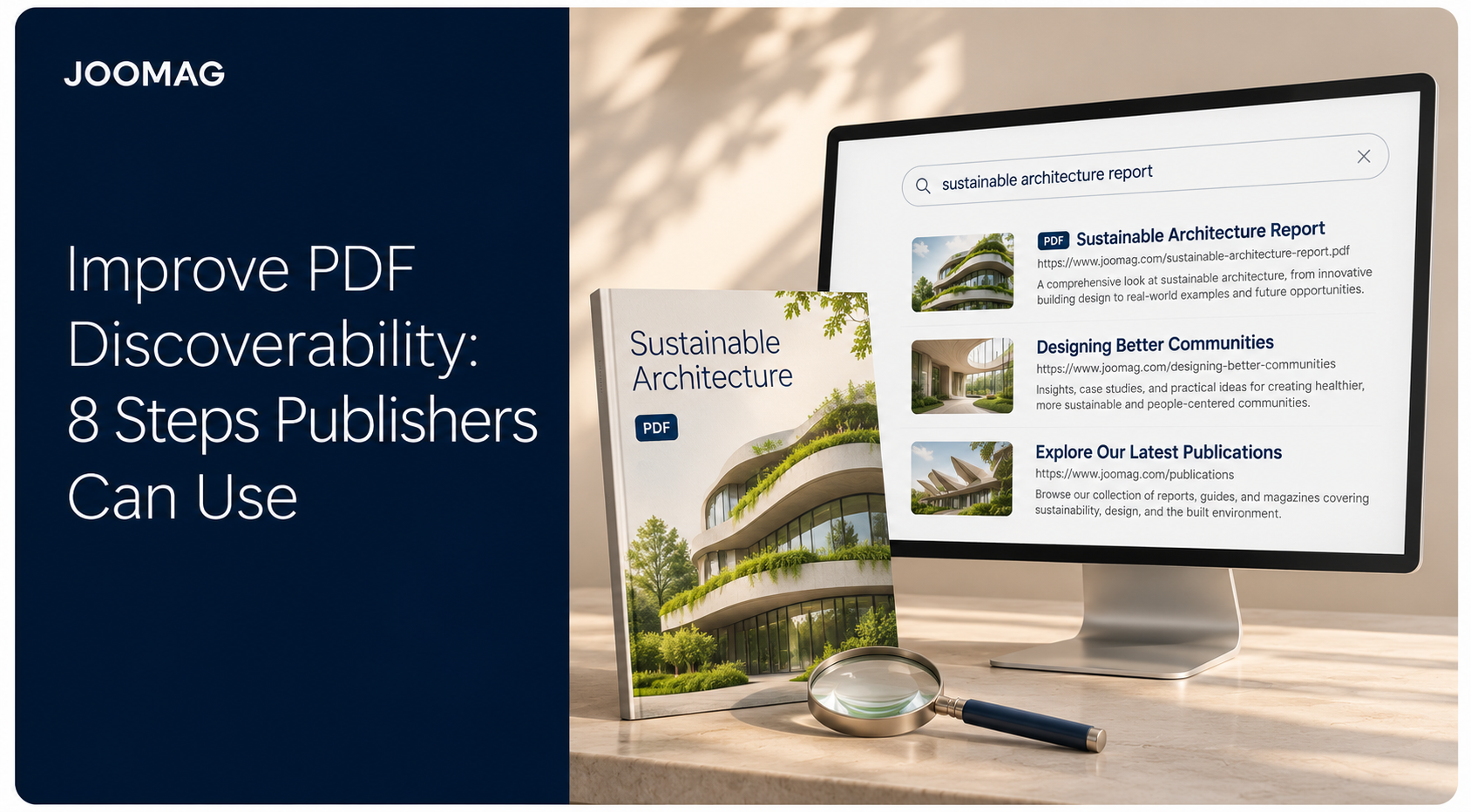
Can search engines find your PDFs, or have you made the download available without making its contents easy to discover? Yes, search engines can index PDFs. The practical question is whether crawlers can reach the file, interpret its text, and understand how it relates to the rest of your publication content.
For enterprise publishing teams, that distinction matters. A magazine issue might contain valuable articles that readers search for individually. A catalog may need to preserve its designed layout, while a report may benefit from an HTML summary that explains its purpose before someone downloads it.
PDF SEO isn't a contest between file formats. It's a publishing discipline that combines readable text, descriptive metadata, useful filenames, sensible file sizes, relevant links, and deliberate access settings. HTML articles add different options for navigation, presentation, internal linking, and story-level discovery, but they don't make PDFs obsolete.
The practical approach is to improve the documents you already publish, then decide where additional HTML pages would serve readers better. That decision should reflect how people find and use your magazines, reports, catalogs, and brochures, not an assumption that changing formats guarantees better rankings.
These eight steps connect document production with Google's published search requirements. They also help editors, designers, marketers, and web teams agree on what ready to publish means.
1. Use Selectable, Searchable Text in Every PDF
A beautifully designed page can still be a poor source of searchable information. If the headline, body copy, or product specifications exist only inside an image, extracting those words requires recognition rather than straightforward text processing.
Start with live text, not flattened pages. When exporting from Adobe InDesign or another layout application, preserve text and appropriate font embedding. Avoid converting important headlines into outlines or placing essential information exclusively inside graphics.
Test Meaning, Not Just Selection
Open the exported PDF, select a passage, and paste it into a plain-text editor. Then search the document for a distinctive phrase. Check whether the pasted text preserves words, spacing, and a sensible reading order.
The W3C's PDF accessibility guidance recommends tagged structure, reliable character mapping, explicit spacing, logical reading order, and an identified document language. These are useful production requirements because a selectable passage can still extract incorrectly.
- Preserve structure. Export headings, paragraphs, and tables with meaningful tags rather than relying on visual formatting alone.
- Repair legacy scans. Run optical character recognition, then review names, abbreviations, symbols, and technical terminology.
- Inspect complex layouts. Check columns, captions, sidebars, and pull quotes for scrambled or duplicated extraction.
Say an association republishes an archived magazine. OCR can make the scanned issue searchable, but an editor should still check whether article text flows into unrelated advertisements.
Practical rule: Treat copy-and-paste as a baseline test, not proof that the entire document is accessible or ready for indexing.
2. Write Descriptive Document Titles and Metadata
A PDF's internal document title is separate from its filename. Leaving it as an export preset, an old campaign name, or an unexplained abbreviation wastes an opportunity to describe the publication accurately.
Google explains that it uses both a PDF's title metadata and the anchor text of links pointing to it when determining its search-result title in its guidance on PDFs in Google Search. That doesn't mean you control the displayed title completely, but it makes accurate document properties worth checking.
Give Similar Publications Distinct Identities
For a professional services firm, Manufacturing Outlook, Supply Chain Resilience, Spring Edition tells readers more than Thought Leadership Final. Use a repeatable pattern that combines the publication name with its subject, issue, or reporting period.
Make the cover heading and metadata title consistent without forcing them to be identical. A cover can use a short editorial headline while the metadata supplies the context needed to distinguish the file in a document library.
- Title: Identify the asset clearly and put its distinguishing subject near the beginning.
- Author: Use the responsible organization or credited author, following your editorial policy.
- Subject: Summarize the document's purpose in plain language.
- Keywords: Keep any entries relevant, but don't treat this field as a substitute for useful titles and readable content.
Check properties in Adobe Acrobat or your PDF editor after export, not only in the source design file. Templates can carry stale metadata into otherwise new publications.
For a B2B content hub, this small release check prevents several reports from appearing to have the same identity. It also makes downloaded files easier for colleagues and prospects to recognize later.
3. Choose Useful, Descriptive Filenames
Compare healthcare-benchmark-report-spring.pdf with report_final_approved_revised.pdf. The first describes the asset; the second describes the production process.
Use filenames that readers can understand outside your workflow. A filename appears in download prompts, shared attachments, and local folders, so it should remain useful after someone leaves your website. Don't expect it to compensate for weak content or missing metadata.
Build the Naming Rule Into Production
An association archive might use publication-topic-issue.pdf. A sales enablement team might prefer industry-asset-type-edition.pdf. Choose a convention that distinguishes different assets without stuffing every possible keyword into the URL.
Keep the filename readable and stable. Internal approval labels, designer initials, and export timestamps usually belong in your production system rather than the public download name.
- Choose meaningful words. Include the publication or report subject, plus an issue or date when it helps distinguish versions.
- Separate words consistently. Use a predictable convention rather than mixing spaces, underscores, and unexplained abbreviations.
- Assign naming ownership. Have the publishing owner approve the filename before the file reaches the website.
- Plan URL changes. If you rename an existing public file, arrange an appropriate redirect and update the links you control.
Say a corporate communications team publishes regional benefits guides. Naming files by region and edition helps employees choose the right guide, while a vague name such as benefits-latest.pdf leaves them dependent on surrounding context.
A descriptive filename is a usability decision first. Don't rename an established library purely to insert more keywords.
For recurring publications, decide whether each edition needs a permanent archive URL or whether a maintained resource should keep its existing address. Document that distinction before teams start replacing files.
4. Keep File Size Sensible for Crawling and Reading
Your print-ready master and your web download don't need to be the same file. Print production may require image detail and assets that add little value to an on-screen edition.
There's also a concrete crawling constraint. Google's Googlebot documentation states that Googlebot fetches the first 64 MB of a PDF, then considers only the downloaded portion for indexing when that limit is reached.
That isn't an ideal file-size target. It's a reason to check large publications carefully and avoid unnecessary weight.
Optimize Without Destroying Useful Detail
Create a web-optimized export and compare it with the master. In Adobe Acrobat's optimization tools, inspect which assets contribute most to file size before applying aggressive compression across the entire document.
- Compress selectively. Reduce oversized photographs while keeping charts, diagrams, and small labels readable.
- Remove unnecessary assets. Eliminate hidden production material and redundant embedded resources where your tools allow it.
- Preserve searchable text. Don't rasterize pages to reduce file size.
- Split by reader task. Offer logical catalog sections when readers need distinct product categories, while retaining a complete edition if useful.
For example, an industrial supplier might provide a full catalog alongside separate equipment-category PDFs. Each section should have a descriptive title, a relevant landing page, and enough context to make sense independently.
Place the publication's purpose and useful overview near the beginning, but don't rearrange an issue merely to chase a crawler limit. If a document is unusually large, reduce its size or provide coherent alternatives.
Test the actual download on an ordinary connection. Check opening speed, image quality, navigation, and text extraction together. A smaller file that makes technical diagrams unreadable isn't a successful optimization.
5. Add Relevant Links Inside and Around the PDF
An uploaded file shouldn't be an orphan. Give readers a clear route to it from relevant website pages, and give readers inside the document useful routes onward.
For a report, that might mean links from a topic hub, an industry article, and a resource library. Inside the report, link to source material, related guidance, and the appropriate next action rather than repeatedly sending everyone to the homepage.
Describe the Destination
Use Download the manufacturing resilience report rather than Click here. Descriptive wording helps people choose the right destination and gives the linked resource useful context.
On the website, use ordinary HTML links with an href pointing to the intended destination. Don't make a script-driven button, an email campaign, or a form confirmation the only route to a public PDF.
- Link from relevant pages. Place the publication where someone researching its subject would reasonably look.
- Test PDF hyperlinks. Confirm destinations, link annotations, and navigation after export.
- Keep calls to action specific. Send readers to the relevant resource, contact page, or product category.
- Review old links. Update or redirect destinations when a campaign ends or a publication moves.
For a trade magazine, an article about procurement could link to a related supplier guide, while the website's procurement hub links to the issue. That creates useful editorial pathways without adding unrelated promotional links.
When planning interactive publication experiences, distinguish navigation within the publication from the public links that help people find it. A polished viewer doesn't replace a clear route from your website to the content.
6. Make PDFs Publicly Crawlable Where Discovery Matters
A confidential proposal and a public industry report need different access rules. Choose the intended audience before choosing the indexing settings.
Google's technical requirements for Search include an unblocked crawler, an HTTP 200 success response, and indexable content. Meeting those conditions makes content eligible for indexing; it doesn't guarantee inclusion.
For publicly discoverable files, test the actual file URL rather than assuming that a working landing page means the download is equally accessible.
Separate Access Control From Indexing Control
A login requirement protects access. A noindex directive addresses search indexing. A robots.txt restriction controls crawling, and blocking a URL there isn't a reliable way to keep its address out of results if other pages link to it.
For PDFs, inspect response headers for an X-Robots-Tag directive. If a file should be excluded through noindex, the crawler must be able to retrieve that instruction.
- Classify each asset. Record whether it is public, gated, subscriber-only, or internal.
- Inspect delivery behavior. Check authentication, expiring URLs, redirects, crawl restrictions, and response headers.
- Test without a session. Open the destination in a private browser window to identify access dependencies.
- Protect sensitive content properly. Use authentication and permissions rather than relying on search exclusion.
A demand-generation team might publish a useful summary while keeping the full research report behind a form. The summary can be discoverable even when the report itself isn't publicly accessible.
Access decision: Don't weaken confidentiality to improve PDF discoverability. Publish a separate public explanation when the underlying material must stay restricted.
Build privacy and access control decisions into the publishing brief so marketing, sales, and security teams don't work toward conflicting outcomes.
7. Pair PDFs With Crawlable HTML Context Pages
A useful landing page answers the questions readers have before opening a document. What does it cover? Who is it for? Is it the current edition, and does it contain the detail they need?
Google describes how indexing analyzes text and key content attributes in its explanation of how Search works. An HTML context page gives publishers a separate place to provide a title, headings, an introduction, internal links, and page metadata around the publication.
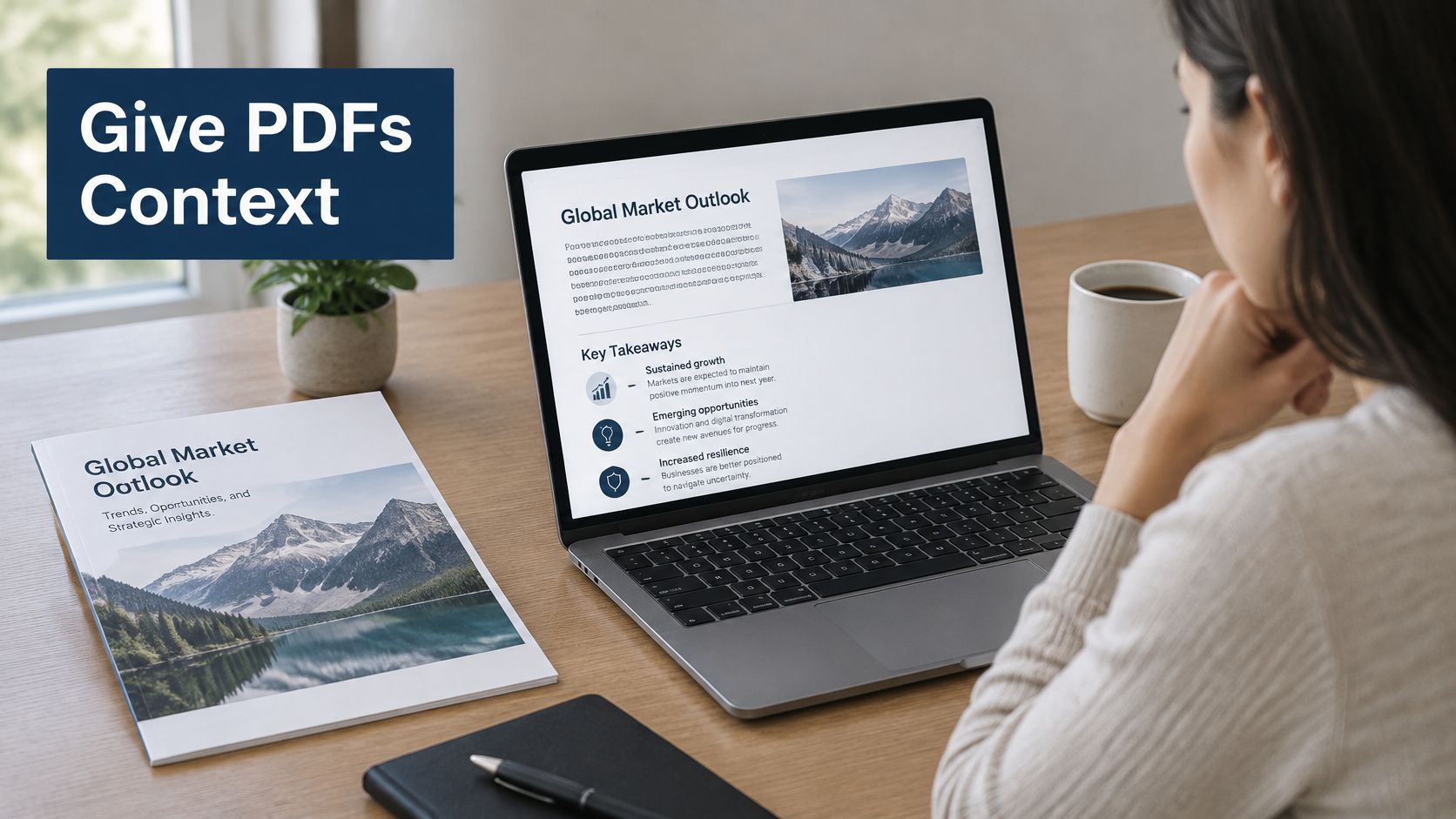
Publish an Overview, Not an Empty Download Page
For a market outlook report, explain the industries covered, the questions addressed, and the intended audience. Include meaningful section names and a clear link to the PDF.
Write a page title and meta description that accurately describe the resource. Don't promise that Google will display your wording exactly, and don't fill the page with repeated keywords.
- Summarize the substance. Explain the report's scope instead of reproducing promotional cover copy.
- Show relevant context. Include the edition, responsible organization, and revision information where appropriate.
- Connect related content. Link to relevant articles, earlier editions, and supporting resources.
- Maintain both assets. Update the page when the PDF changes so descriptions and download links remain accurate.
An HTML overview isn't the same as publishing every article separately. The overview supports discovery of the whole publication; standalone articles serve readers looking for a particular story or topic.
That distinction keeps the format decision practical. A catalog may need only a strong overview and category links, while a magazine may justify individual article pages as well as its complete issue.
8. Decide When to Keep a PDF, Publish HTML Articles, or Offer Both
Which format best serves the reader's task: browsing a complete designed issue, or finding and sharing one specific article? Keep the PDF when fixed pagination, print-ready presentation, offline access, or the publication as a whole matters. Publish individual articles in HTML when readers need direct links to specific stories, page-level navigation, or responsive reading.
A hybrid approach lets readers browse the complete designed publication or open an individual story that answers their question. With Joomag’s AI Article Extraction, teams can turn articles from existing PDFs into responsive HTML pages, each with its own URL, while retaining the original publication.
This creates additional entry points for specific topics. An interview, research finding, or industry analysis can be shared independently and connected to relevant content on your website. Review the extracted text, headings, images, captions, and links in Article Studio before publishing, then verify access and indexing settings for the live pages.
Review the Actual Publishing Setup
For example, a magazine publisher might retain the complete issue for subscribers while making selected feature articles public. Review each article page against its source, especially when the layout includes sidebars, captions, tables, or text continued on another page.
- Check conversion accuracy. Correct missing or duplicated text, heading order, images, and links.
- Confirm access and indexing. Check that pages respond successfully, are accessible to crawlers, and have appropriate indexing directives. Review their indexing status afterward.
- Write article-specific metadata. Give each page a title and description that reflect its article, not just the issue.
- Resolve substantial duplication. Choose preferred versions deliberately and use canonical signals when the pages represent substantially the same content.
An entire magazine PDF and one feature article are different assets, so they are not automatically interchangeable canonical versions. Link them clearly to show how they relate, but treat that link as navigation, not as a canonical directive.
Plan digital publication delivery around what readers need from each asset. Compare impressions, clicks, and engagement for the formats you publish, and weigh those results against the extra work of maintaining both.
PDF Discoverability Practices at a Glance
| Practice | Core Focus | Key Actions | Main Limitation |
|---|---|---|---|
| Use Selectable, Searchable Text in Every PDF | Make PDF content readable to search engines and people | Keep headlines and copy as live text, embed fonts, and OCR scanned pages | OCR takes time; outlined text is not searchable |
| Write Descriptive Document Titles and Metadata | Clearly identify each document and its subject | Set accurate title, author, subject, and keyword fields; match the first-page heading | Metadata is often missing or inaccurate |
| Choose Useful, Descriptive Filenames | Make file URLs recognizable and easy to manage | Use consistent, human-readable names with relevant topic and date | Renaming published files can break existing links |
| Keep File Size Sensible for Crawling and Reading | Balance crawlability with download speed and quality | Optimize images, remove unused elements, and split very large files when needed | Compression can reduce print quality; splitting can disrupt reading |
| Add Relevant Links Inside and Around the PDF | Connect the PDF to related content and discovery paths | Add tested, descriptive links in the PDF and link to it from crawlable pages | Links can break or distract if overused |
| Make PDFs Publicly Crawlable Where Discovery Matters | Ensure public content is accessible to search engines | Review access controls, robots.txt, and X-Robots-Tag settings | Gated or accidentally blocked files cannot attract organic search traffic |
| Pair PDFs With Crawlable HTML Context Pages | Provide searchable context around each document | Create a page with a unique title, summary, PDF link, and related resources | Requires extra production and maintenance |
| Decide When to Keep a PDF, Publish HTML Articles, or Offer Both | Match format to content and audience needs | Keep PDFs for full publications; publish reviewed HTML articles when separate discovery is useful | Maintaining both formats adds workload and requires duplicate-content handling |
Putting Your PDF Discoverability Plan Into Practice
How should a team improve PDF discovery without turning every publication into a conversion project? Start with the documents that still serve readers, then assign clear ownership for their upkeep.
Editors can review content and metadata; designers can preserve readable text and document structure; web teams can check URLs, redirects, headers, and crawlability. Assign someone to retire outdated versions and keep public descriptions accurate.
Fix the Publishing Process Before Scaling It
Standardize recurring choices, not editorial formats. Shared export settings, filename conventions, metadata patterns, and landing-page templates can reduce inconsistencies while leaving room for different publication needs.
Use reader needs to decide where production effort goes. Keep complete PDFs when the issue or document works best as a whole. Publish HTML articles when topic-level discovery matters, and offer both when readers benefit from each format.
- Repair the foundation. Make important text searchable and check that extracted text retains its meaning.
- Clarify identity. Align document titles, filenames, visible headings, and landing-page descriptions.
- Validate delivery. Check that public assets are reachable and restricted assets remain protected.
- Expand selectively. Create standalone article pages when they offer readers a useful entry point.
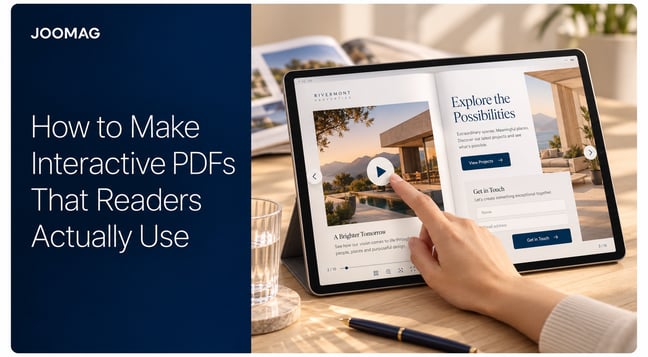
Joomag's Creative Studio lets users import PDFs, add interactive elements, and adapt content for mobile. Teams can distribute content through hubs, website embeds, and native mobile apps. Choose the channels that fit the audience, then check access, metadata, and indexing in the live setup.
Measure Discovery and Use Separately
Set a baseline before changing formats. Track search impressions and clicks in Google Search Console where available, alongside landing-page visits, downloads, engagement, and relevant conversion actions. Keep visibility measures separate from measures of reader usefulness.
For internal or restricted publications, evaluate discovery through the systems available to the intended audience. Public search traffic is not a useful success measure for a confidential sales library or employee-only report.
No format guarantees rankings. Remove technical and editorial barriers, provide suitable entry points, and use observed search behavior to decide where to invest next.
Make Your Publication Content Easier to Discover With Joomag
A valuable story shouldn’t be difficult to find simply because it sits inside a long PDF. Joomag helps teams preserve their designed magazines, reports, and brochures while turning individual articles into mobile-friendly HTML pages with shareable URLs.
Use AI Article Extraction to reduce manual conversion work, review and refine the results in Article Studio, and connect each story to relevant pages and resources. Readers can explore the full publication or go directly to the content that interests them.
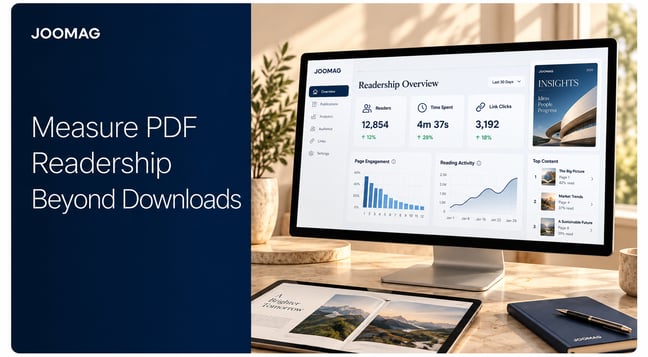
Track search visibility through your search reporting tools and use Joomag’s reader analytics to understand engagement after readers arrive. Together, these signals help your team decide which content to promote, update, or repurpose.
Book a demo to see how Joomag can give your existing PDF content more ways to be found and read.